
The Go/No-Go verdict
Know in two minutes whether a tender is worth a week of work: the verdict, its reasons, your dossier against the notice and the requirement checklist.
Answering a tender costs one to two weeks of work: collecting the dossier, administrative documents brought up to date, technical offer, financial offer, bid bond. Most firms decide whether to go for it on instinct. SangoBids reads the notice and its documents, compares them with your profile and gives a reasoned verdict, so the decision takes two minutes rather than two days.
The verdict and its reasons
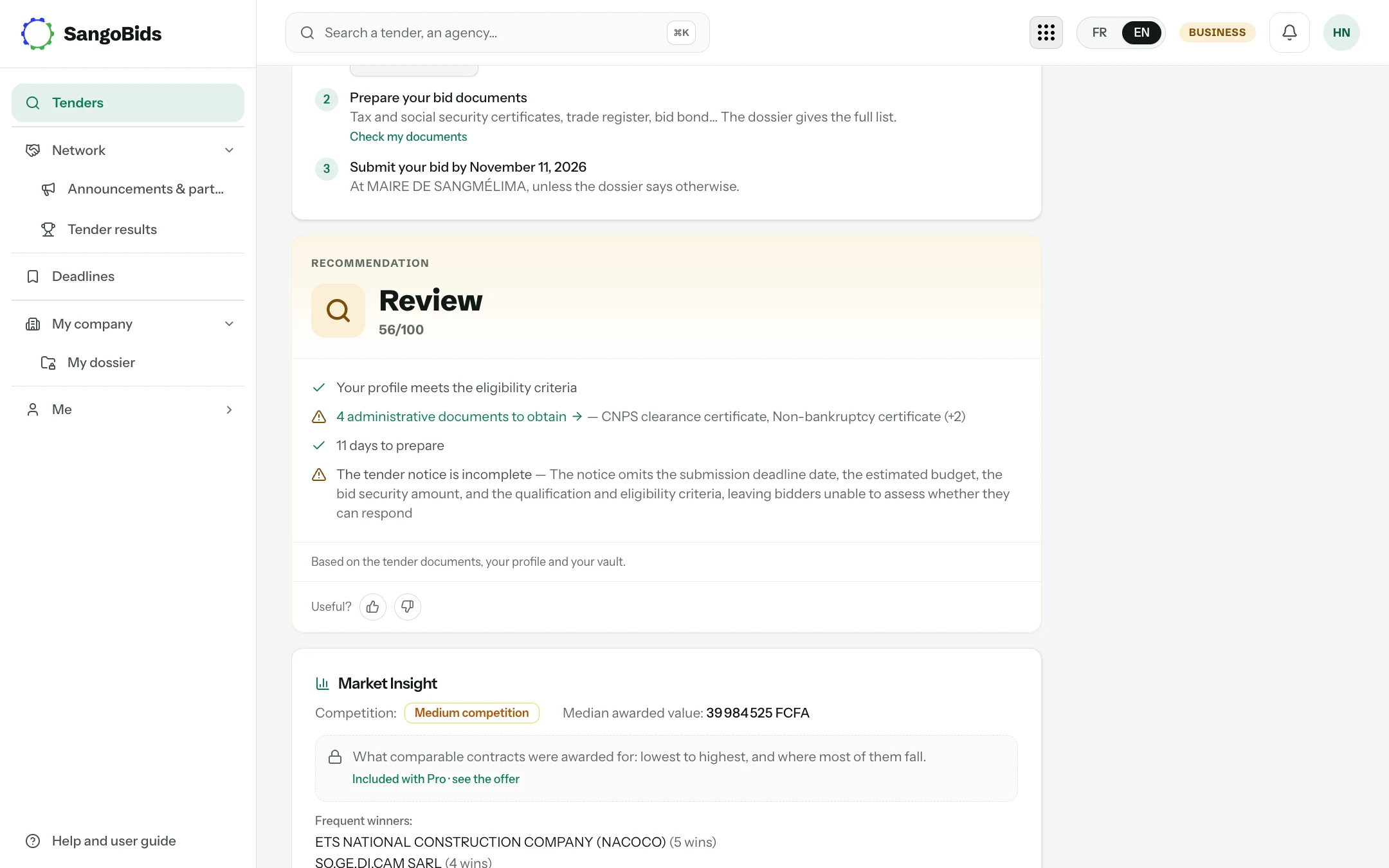
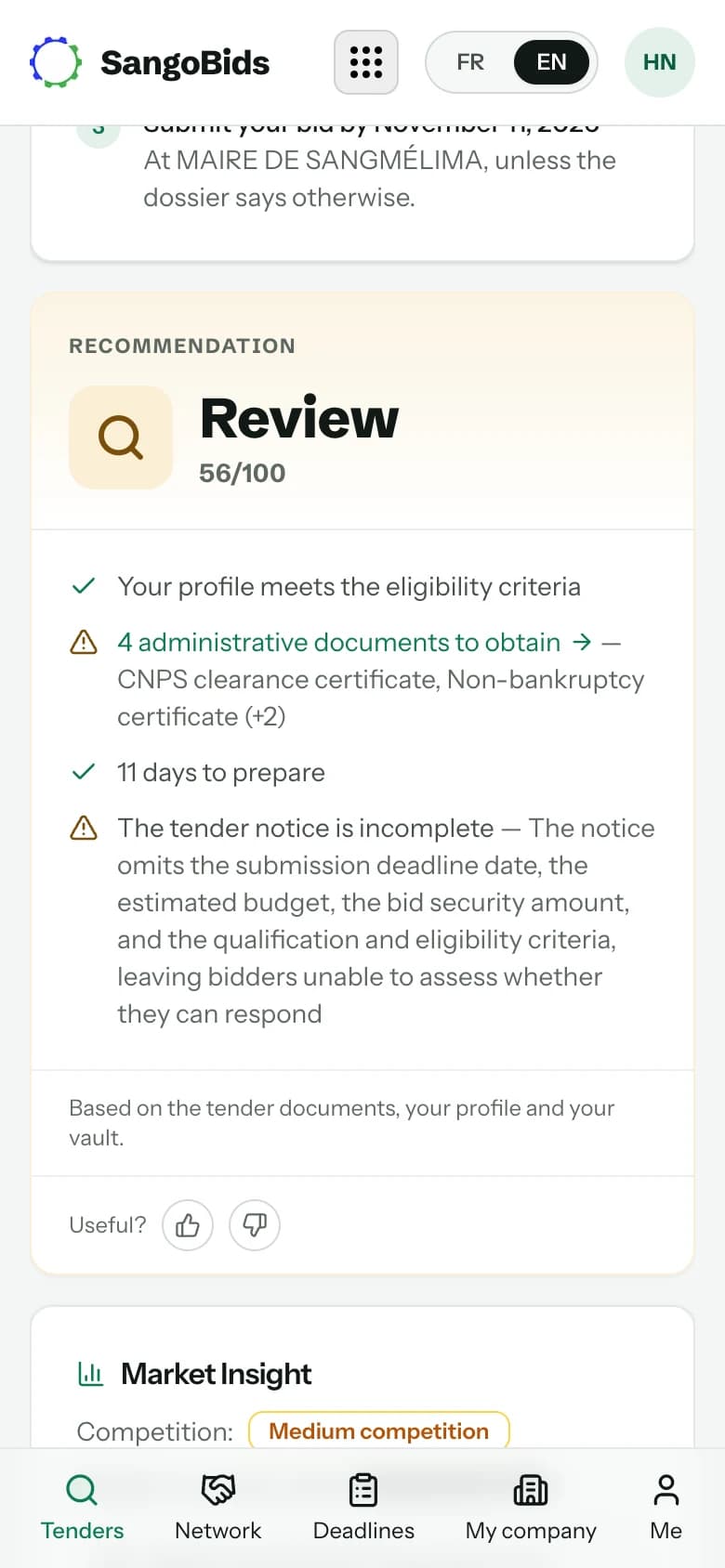
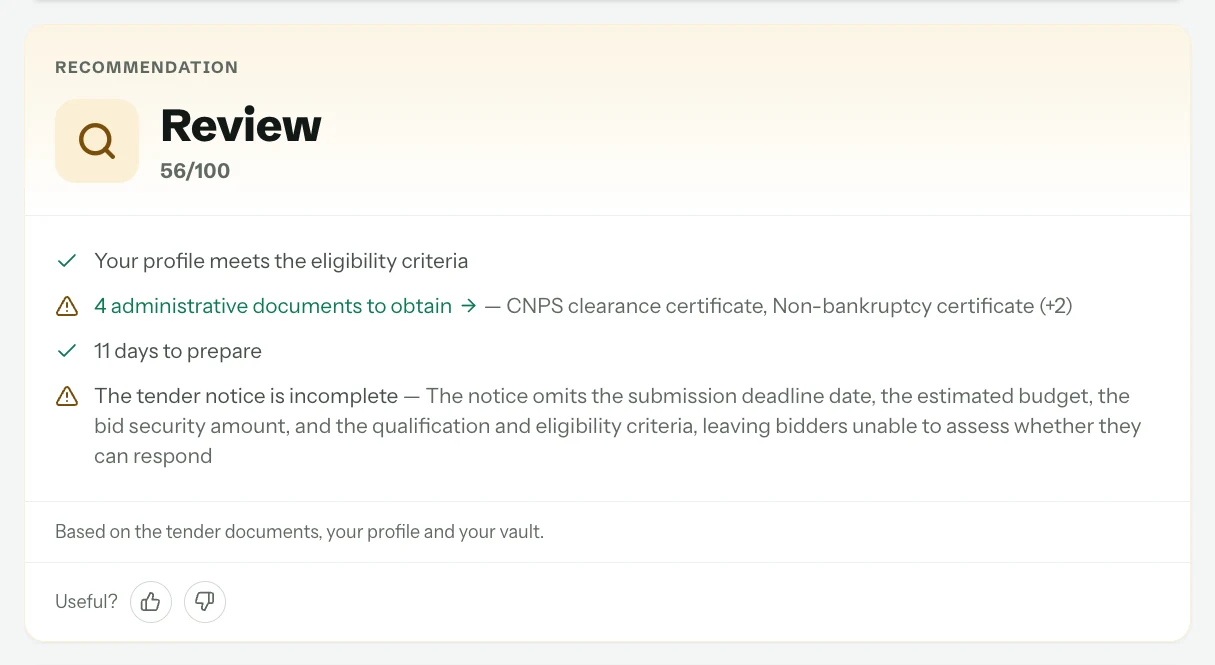
On every tender page, under the "How to respond" steps, the Recommendation card shows one of three verdicts:
- Pursue: the notice matches your activity, the deadline is workable and nothing in the documents rules you out.
- Review: there is a real opportunity, but at least one point deserves checking before you commit the work.
- Skip: a criterion excludes you, the deadline is too short, or the notice does not match what you do.
Computer
Phone
Computer
The reasons combine three sources:
- The notice itself: time left, amount, type of procedure, bid bond requested, and what the notice does not say. An incomplete notice is flagged as such, because it is common and it changes how you go about finding out more.
- The tender documents, when they are published: qualification criteria, minimum turnover, required references, licences.
- Your profile: sectors, regions, size, capabilities declared on your company page and documents present in your dossier.
Your dossier against the notice
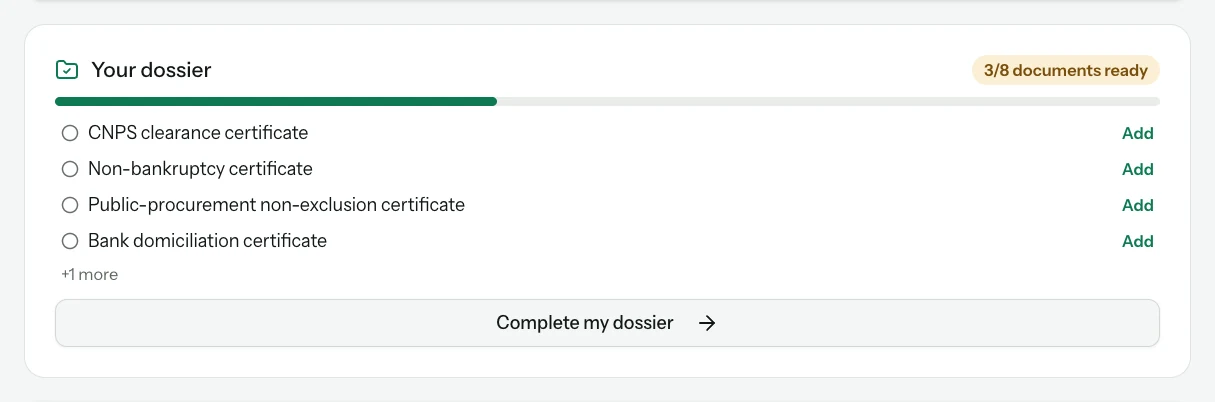
Just below, the Your dossier card sets the administrative documents this kind of notice asks for in your country against the ones already stored in your vault.
Computer
Read the counter
"3/8 documents ready" means that five documents usually requested for this kind of contract are not in your dossier, or have expired.
Add what is missing
Each Add button opens the upload for that document, with its expiry date. A document added once serves for every later notice.
Check against the tender dossier
The list is the usual set of documents in your country. The tender dossier (DAO) always prevails: it may ask for others, or waive some.
The complete requirement checklist
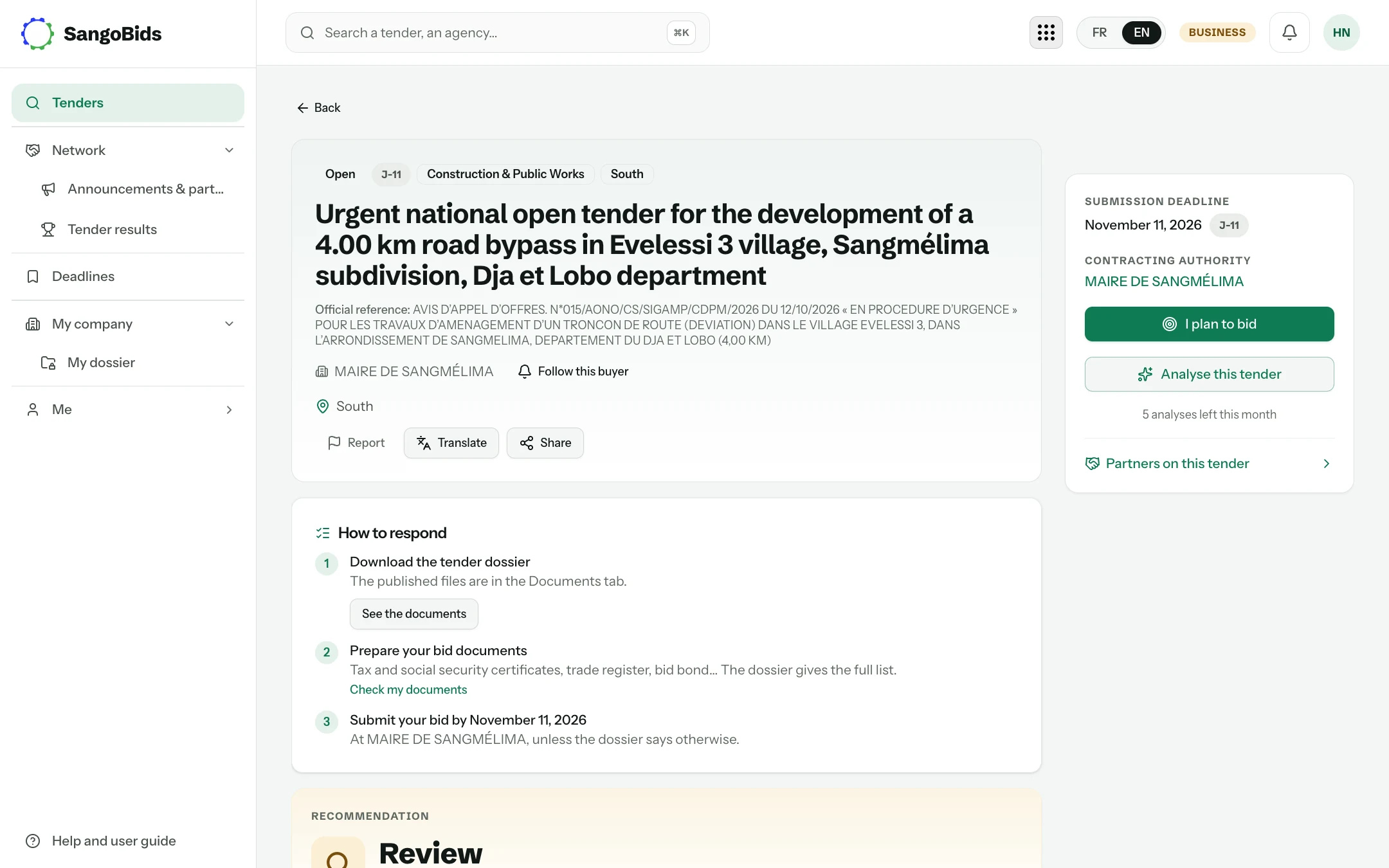
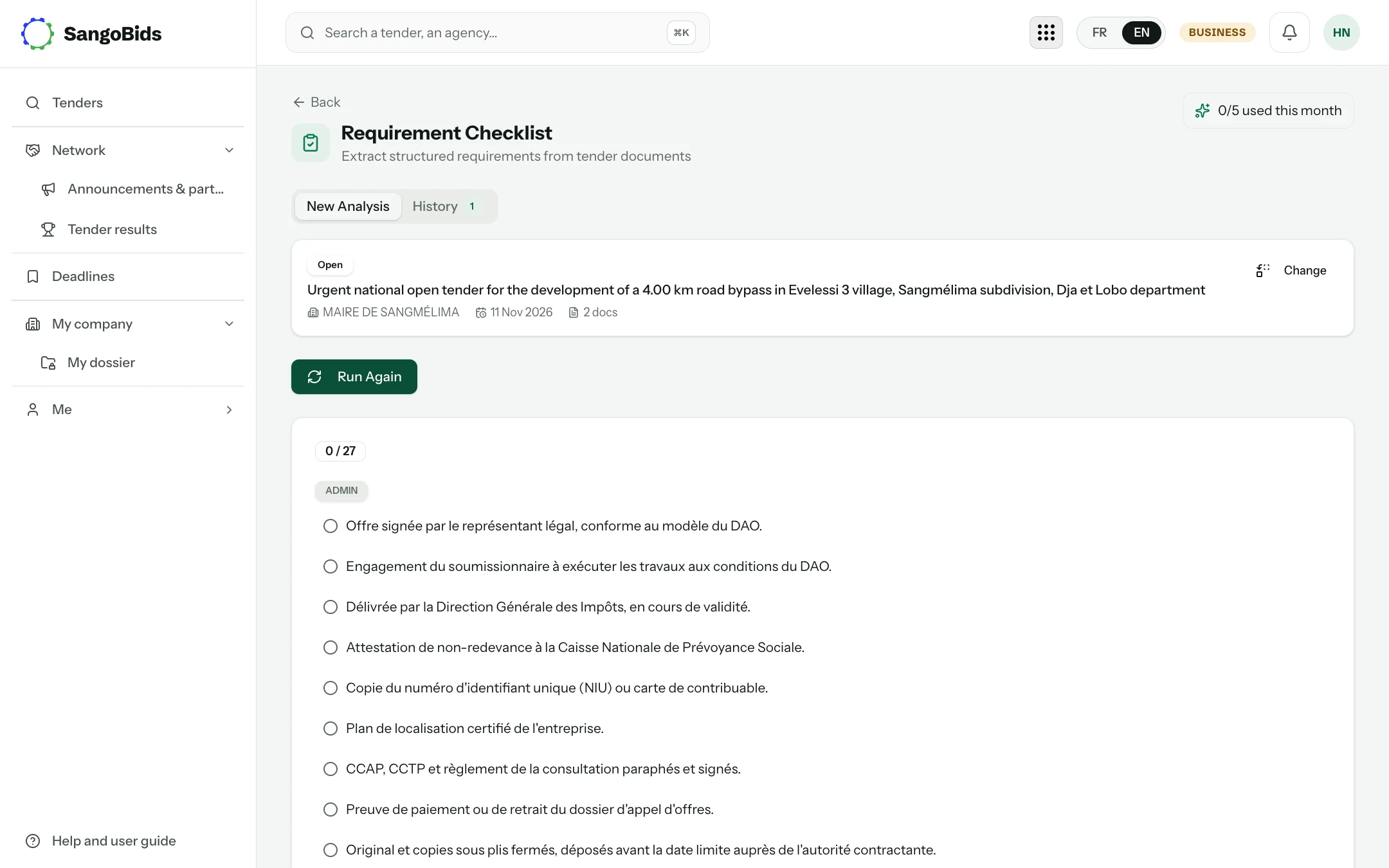
When the notice's documents are published, SangoBids can extract every requirement, administrative, technical and financial, into one list to tick off.
Computer
Open the analysis from the tender page
The Analyse this tender link leads to the Requirements list tool, already set to this notice.
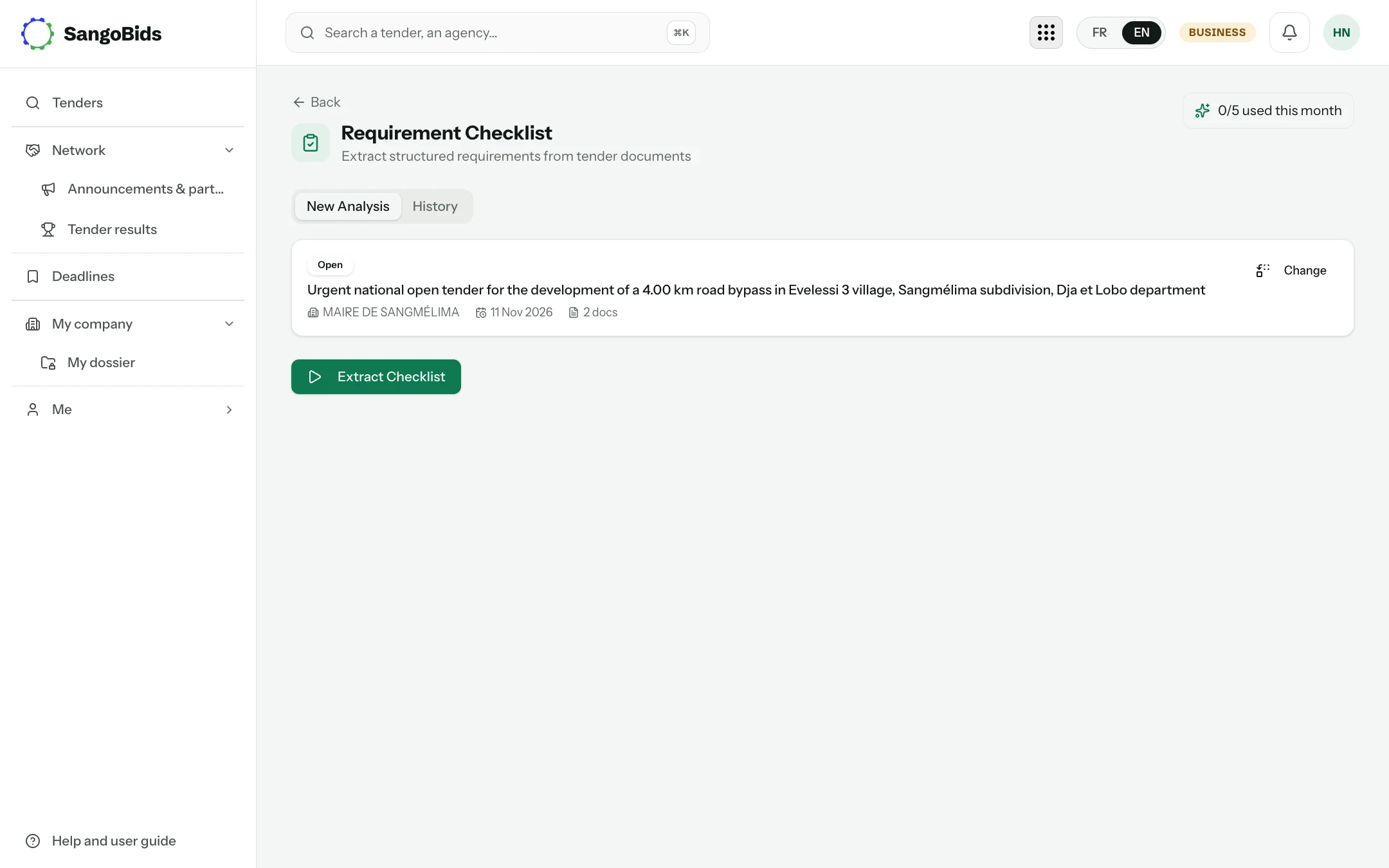
Run the extraction
The Extract Checklist button reads the published documents. Allow thirty seconds to two minutes depending on their size.
Computer
Computer
Phone
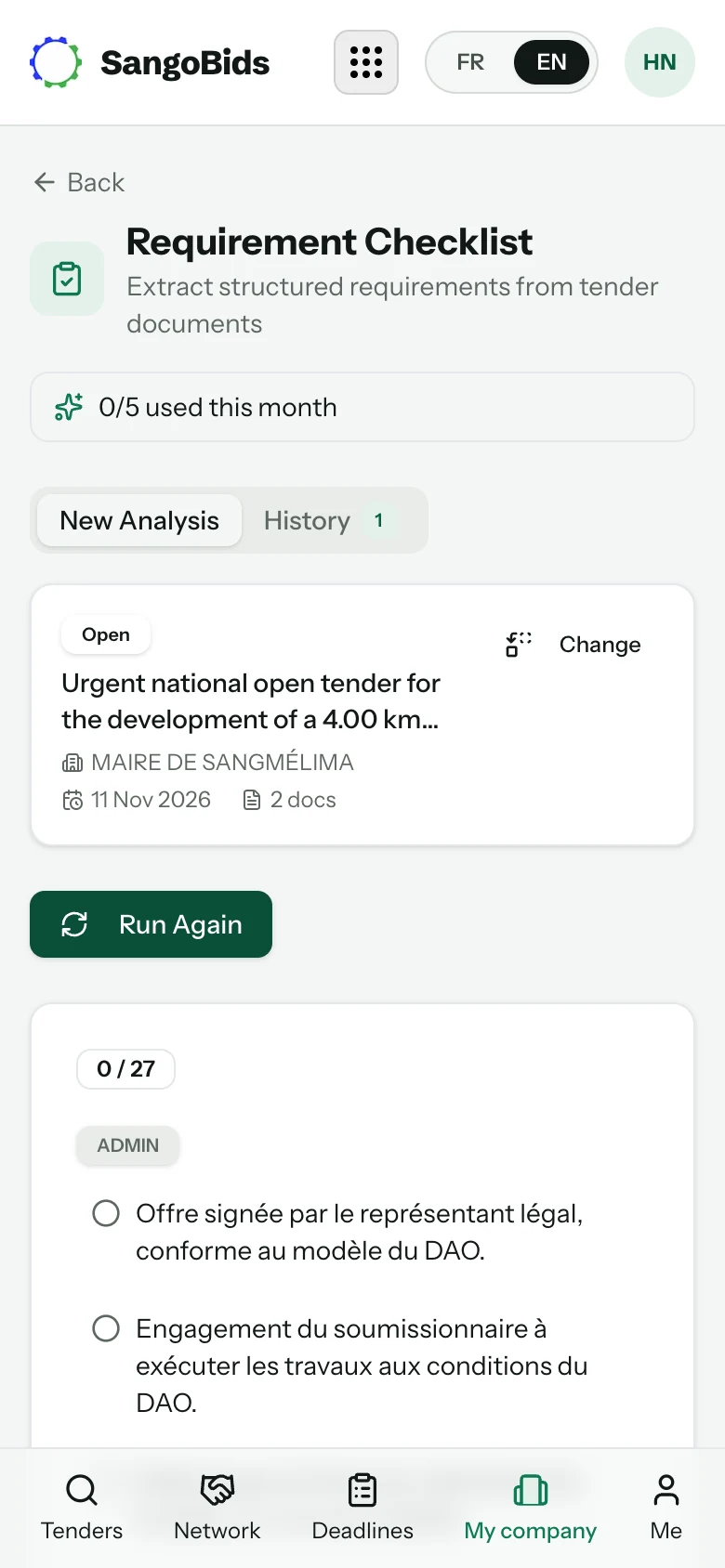
The checklist stays attached to the notice: you find it again in the tool's History tab and on the tender page, with your boxes ticked. It exports, to be shared with a partner or an accountant.
What the verdict does not do
It does not read what is not published. When a notice gives neither amount, nor criteria, nor documents, the verdict says so, and the right decision is to collect the dossier from the buyer before deciding: the "How to respond" steps, above the card, say where. Nor does it know your order book: a "Pursue" on a contract you do not have the capacity to absorb remains your decision.
What next
Favourable verdict? Track the notice so you miss no date: the Track button at the top of the page, then the Deadlines page. That is the subject of a coming article in this guide. Meanwhile, Search for tenders shows how to bring the notices worth a verdict to you.
Read next
Ready to try?
The account is free and public tenders stay free. Three minutes is enough to receive the first ones.
Get started free